LOOPBACK RECORDER - WAV + MP3
A downloadable AUDIO RECORDER
LOOPBACK RECORDER – WAV + MP3
Record any Windows playback audio directly to WAV, MP3, or both.
Loopback Recorder is a focused Windows desktop utility for capturing the complete audio playing through a selected playback device. It records internally through Windows WASAPI loopback, without requiring a microphone, virtual audio cable, cloud service, account, or full digital audio workstation.
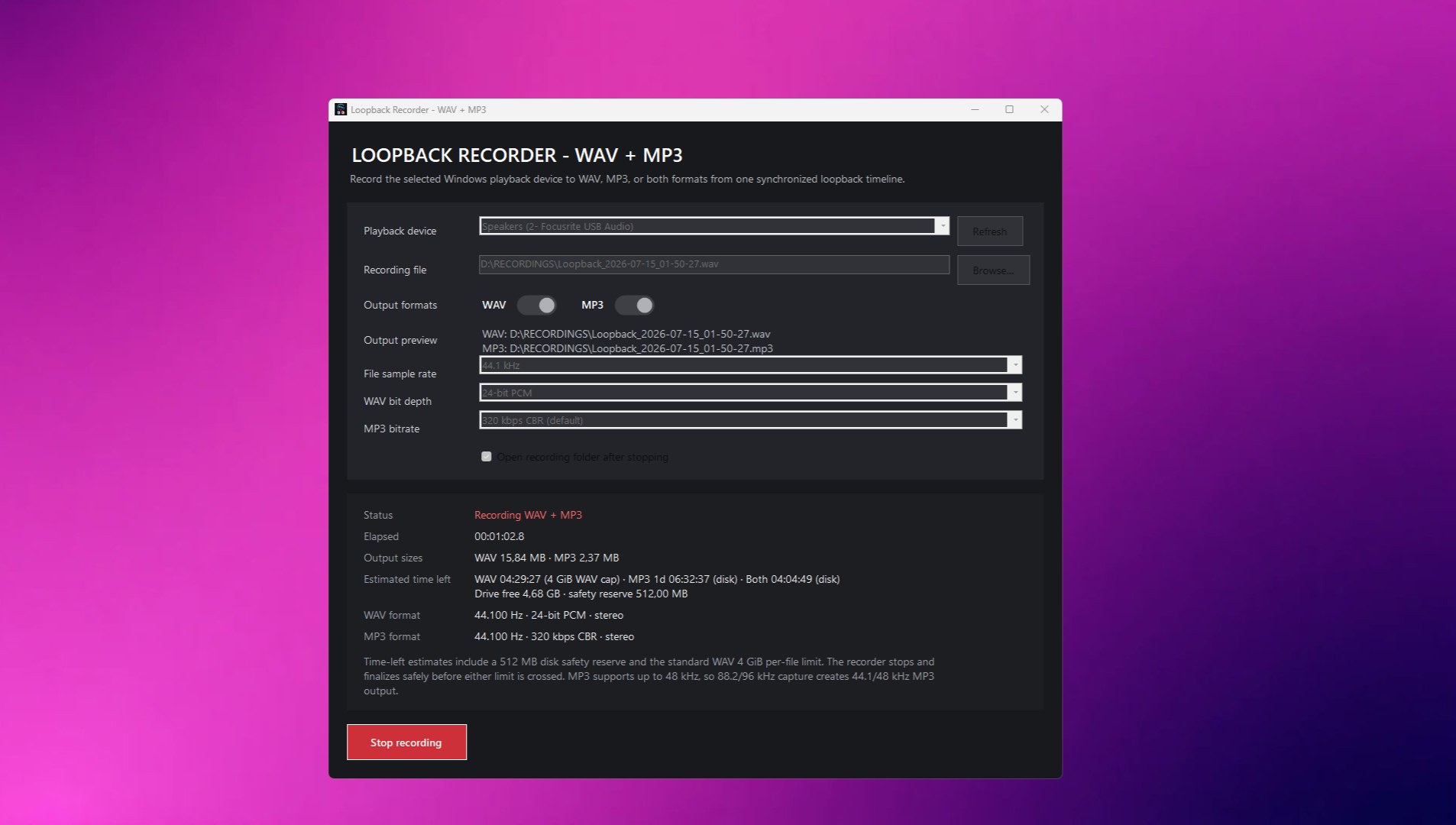
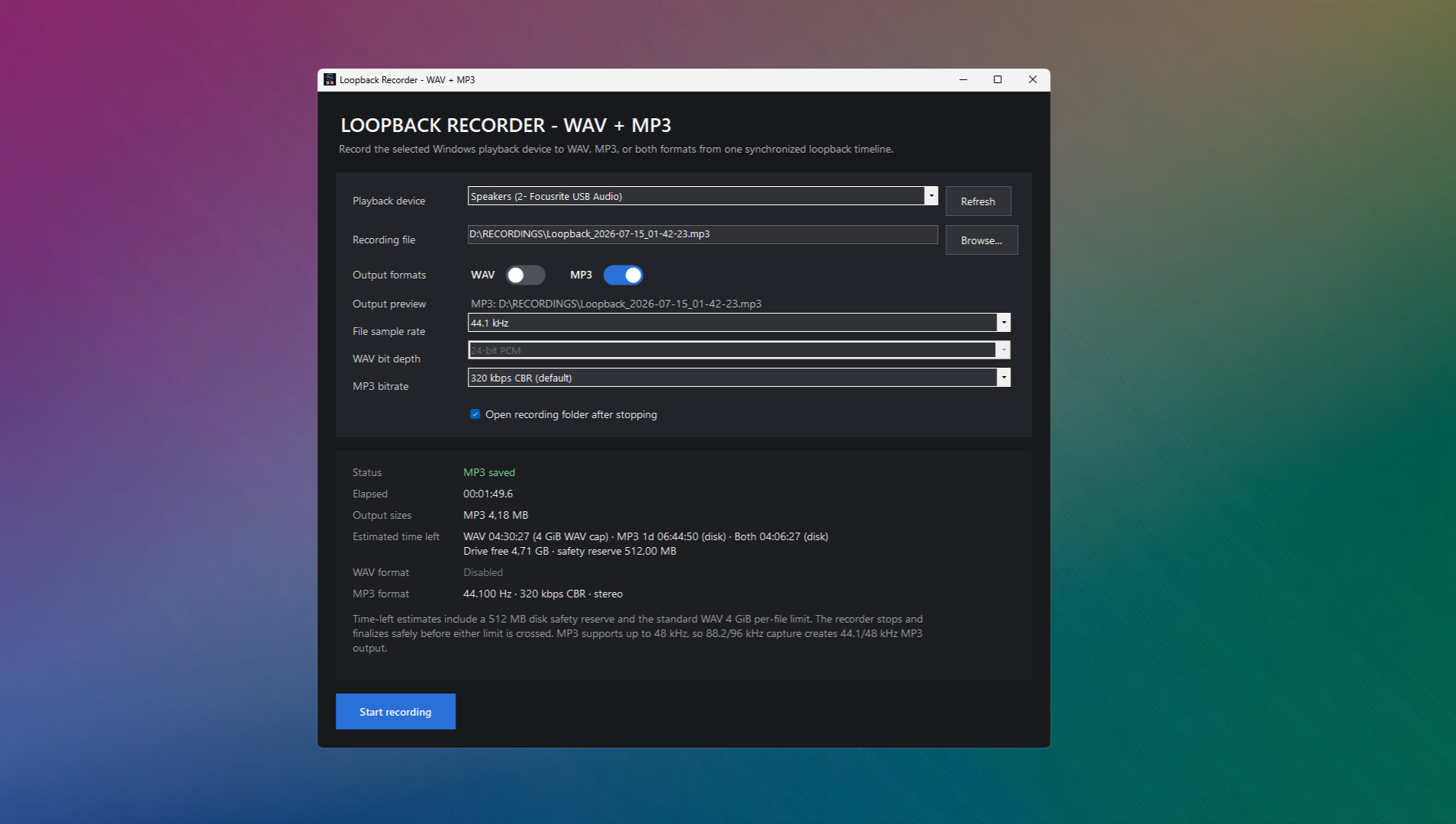
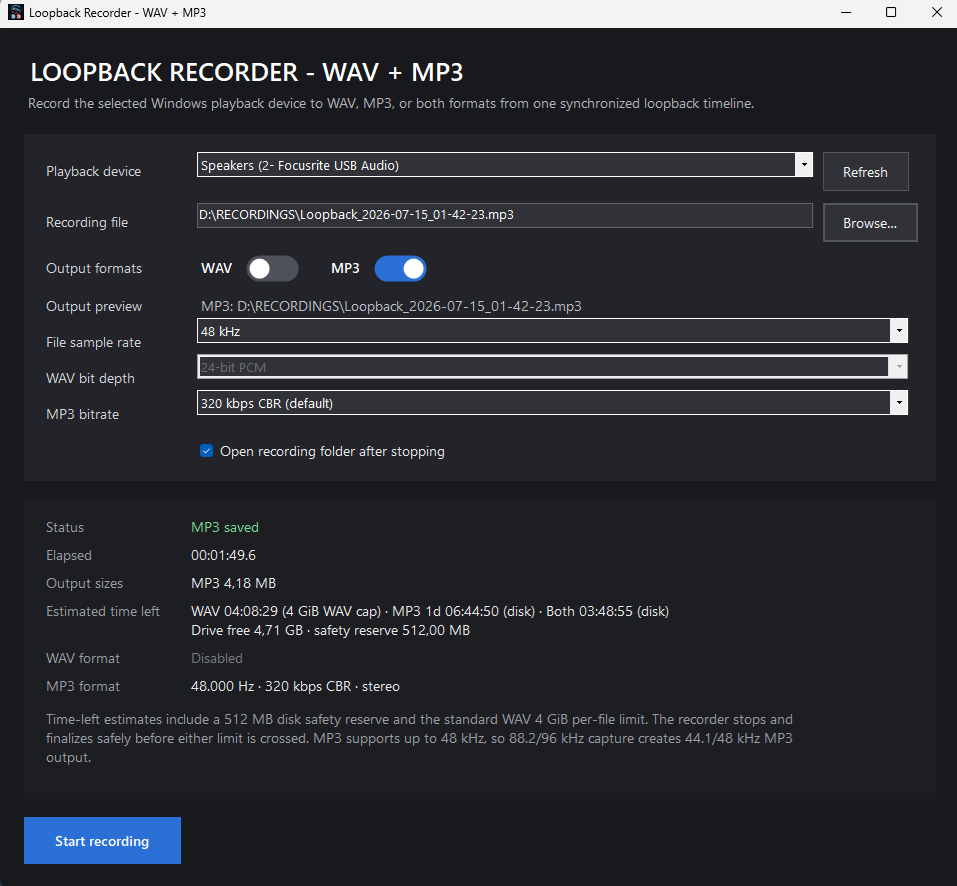
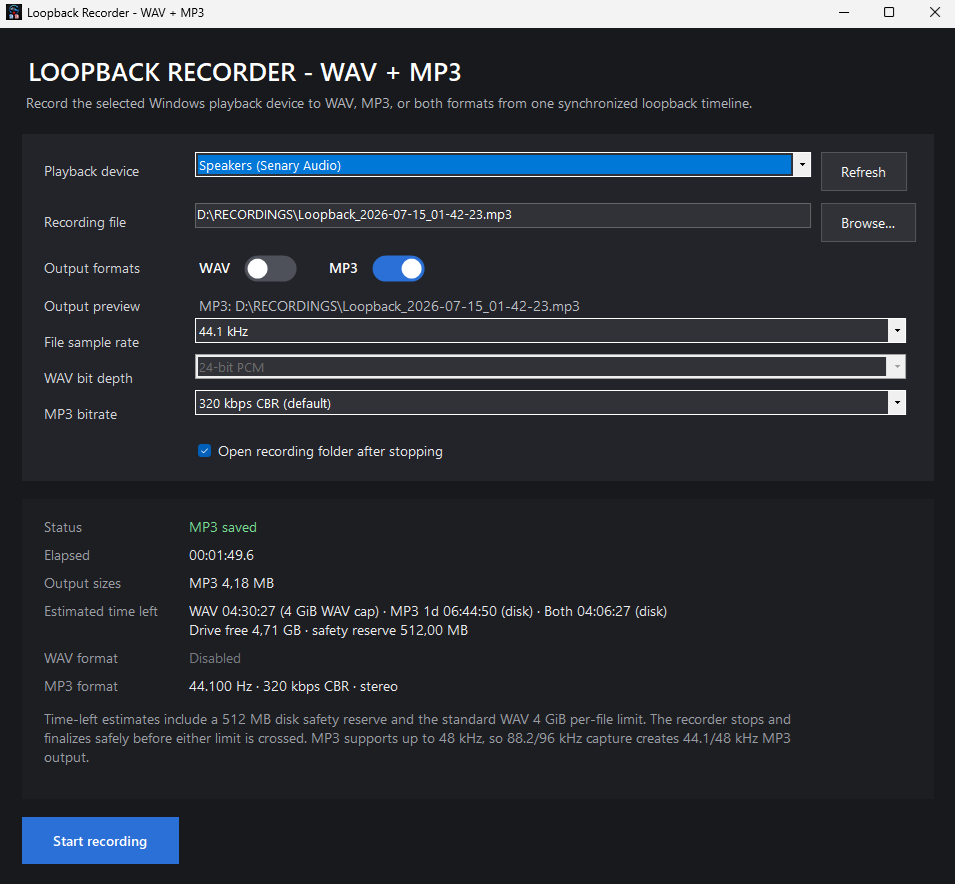
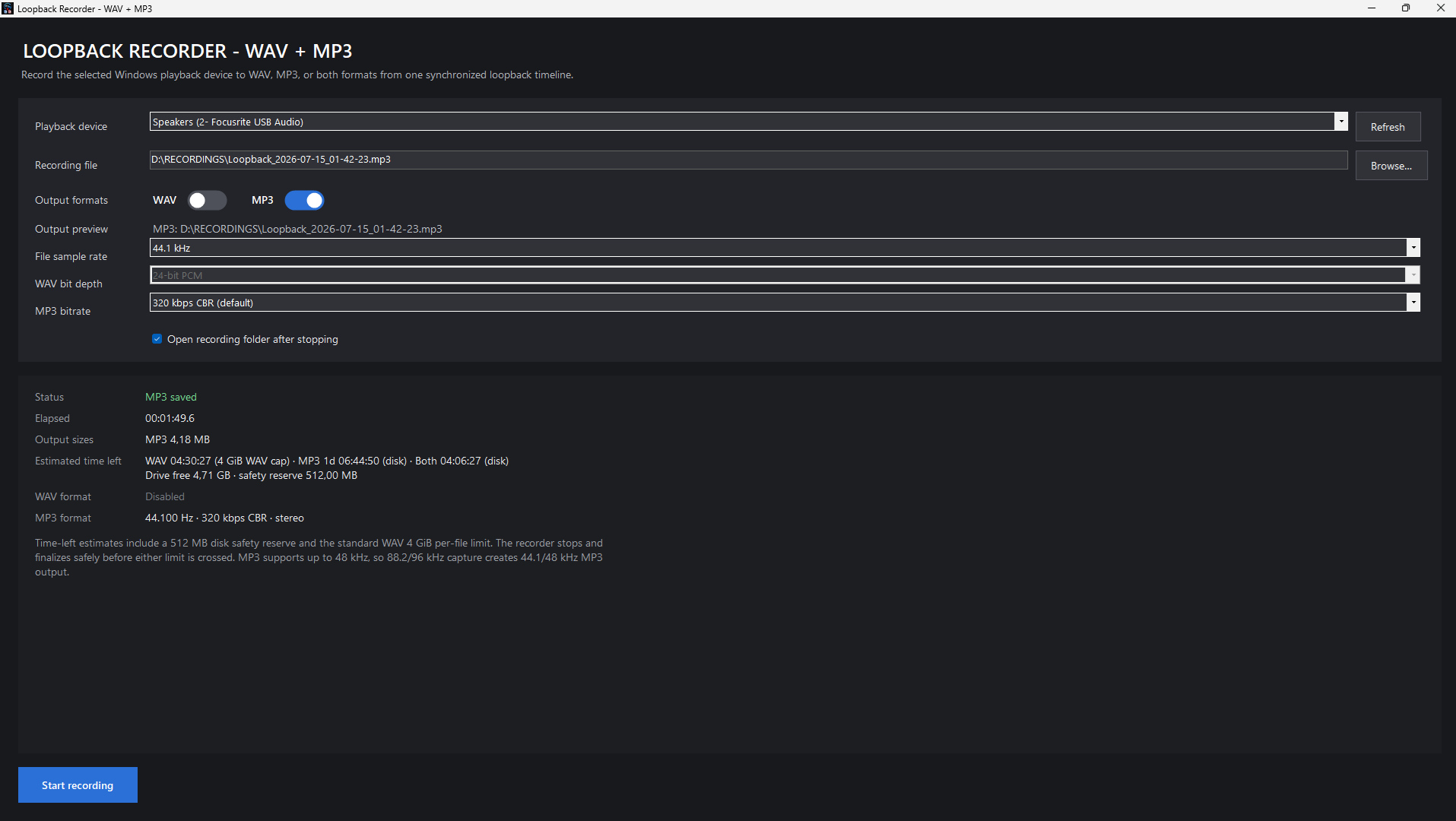
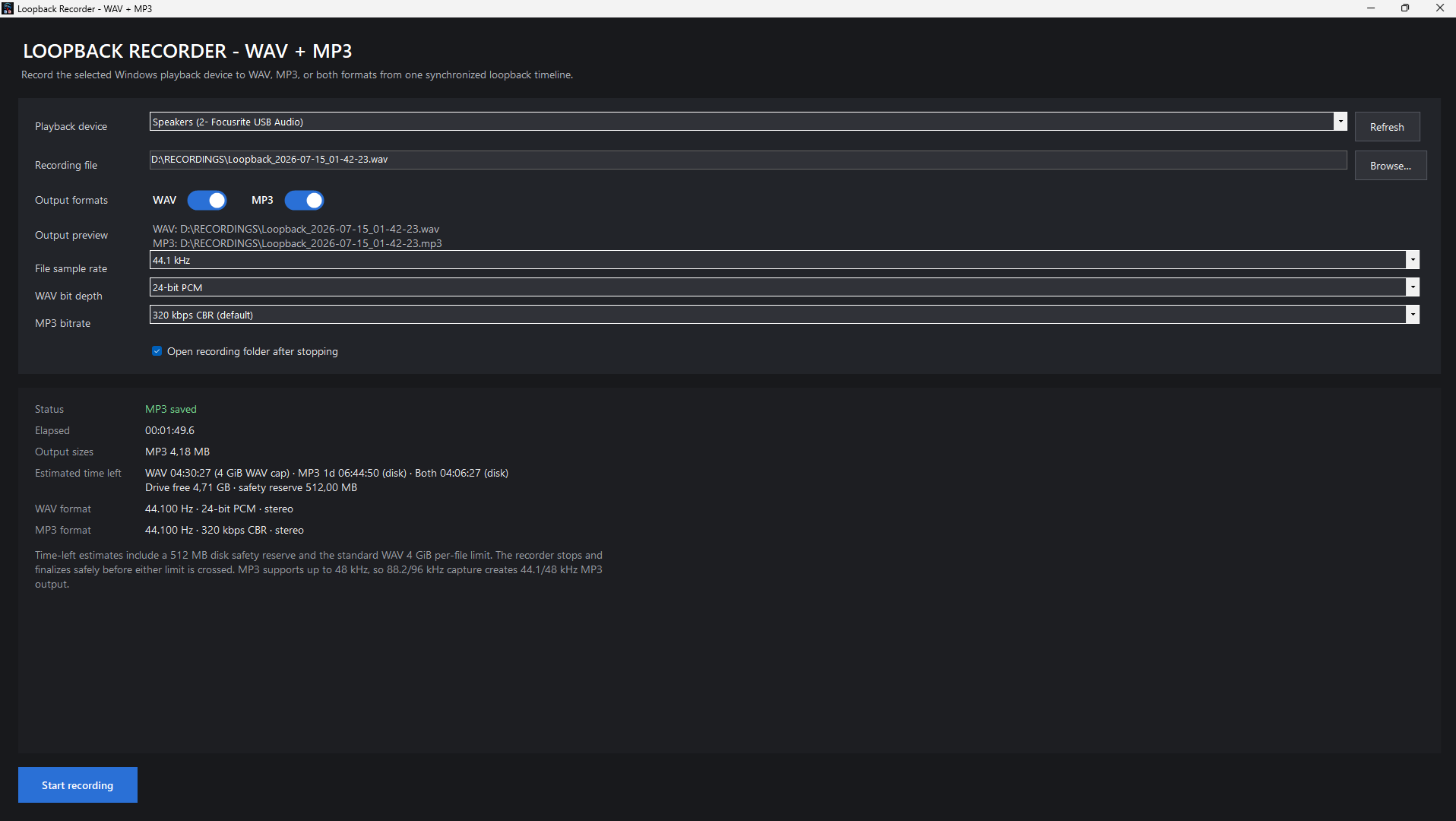
Select your playback device, enable WAV, MP3, or both, choose the required quality, and press Start Recording. The same button becomes Stop Recording while capture is active. When stopped, the application finalizes the enabled files and opens the destination folder.
Key features
- Record WAV only, MP3 only, or WAV and MP3 together
- Capture the complete Windows mix through WASAPI loopback
- One-button Start/Stop recording workflow
- Remembers the selected recording directory between sessions
- 44.1, 48, 88.2, and 96 kHz WAV output
- 16-bit PCM, 24-bit PCM, and 32-bit floating-point WAV
- 128, 256, and 320 kbps constant-bitrate MP3
- Silent-gap compensation preserves pauses and recording duration
- Timestamped filenames with automatic collision protection
- Reuses an existing File Explorer window instead of repeatedly opening duplicates
- Live elapsed-time and output-file-size monitoring
- Runs locally with no account, subscription, or cloud upload
Record Windows system audio directly
Loopback Recorder captures the audio routed to a selected Windows playback endpoint.
This can include audio from:
- Web browsers
- Media players
- Games
- Music-production software
- Video-editing applications
- Communication software
- Standalone synthesizers and audio tools
- Multiple applications playing simultaneously
- Any other software routed through the selected playback device
The application records the complete mix being sent to the chosen output device. It is designed to capture a playback endpoint as a whole rather than isolate one individual program from the rest of the Windows mix.
Choose WAV, MP3, or both
WAV and MP3 output can be enabled independently.
WAV only
Create a high-quality master suitable for editing, archiving, restoration, mastering, analysis, or later conversion.
MP3 only
Create a smaller recording suitable for quick listening, reference use, transferring, uploading, or sharing.
WAV and MP3 together
Produce a synchronized WAV master and MP3 copy during the same recording session.
Both files use the same recording name and are stored together in the selected output folder. When only one format is enabled, only that file is created.
At least one output format must be enabled before recording can begin.
WAV recording quality
Choose the WAV sample rate and bit depth before starting a recording.
Available sample rates
- 44.1 kHz
- 48 kHz
- 88.2 kHz
- 96 kHz
Available WAV formats
- 16-bit PCM
- 24-bit PCM
- 32-bit floating point
The default WAV configuration is:
48 kHz · 24-bit PCM · Stereo
16-bit PCM
A widely compatible format suitable for general recording and workflows where smaller WAV files are preferred.
24-bit PCM
The recommended default for high-quality recording. It provides greater precision than 16-bit audio while remaining compatible with most professional audio software.
32-bit floating point
Suitable for further processing in compatible audio editors and digital audio workstations.
When writing 16-bit or 24-bit PCM files, the recorder performs the required sample conversion and applies TPDF dither.
MP3 recording quality
Choose from three constant-bitrate MP3 settings:
- 128 kbps
- 256 kbps
- 320 kbps
The default MP3 configuration is:
320 kbps CBR · Stereo
128 kbps
Suitable for speech, previews, reference recordings, and situations where smaller files are more important than maximum sound quality.
256 kbps
A practical balance between file size and sound quality.
320 kbps
The highest available MP3 setting and the recommended choice for music, sound design, and high-quality compressed copies.
High-resolution WAV and compatible MP3 output
MP3 encoding supports sample rates up to 48 kHz. When WAV and MP3 are recorded together, high-resolution WAV rates are mapped to a compatible MP3 rate:
44.1 kHz
44.1 kHz
48 kHz
48 kHz
88.2 kHz
44.1 kHz
96 kHz
48 kHz
| MP3 output |
|---|
This keeps the WAV file at the selected high-resolution rate while creating a compatible MP3 copy during the same session.
Simple recording workflow
- Select the Windows playback device currently producing the audio.
- Enable WAV, MP3, or both.
- Choose the required recording quality.
- Select an output folder.
- Press Start Recording.
- Play the audio you want to capture.
- Press Stop Recording.
- Wait for the enabled files to be finalized.
- Access the completed recording in File Explorer.
The selected output directory is stored and restored the next time the application is opened.
Recording-format controls are locked during capture so that the file configuration cannot be changed halfway through a session.
Safe file and folder handling
Loopback Recorder is designed to avoid accidentally overwriting existing recordings.
Files use timestamped names such as:
Loopback Recording 2026-07-14 18-32-05.wav
If the same filename already exists, the recorder adds an incrementing numeric suffix:
Loopback Recording 2026-07-14 18-32-05_1.wav
When WAV and MP3 are recorded together, both receive the same base name and suffix.
After recording, the destination folder is opened and the completed file is selected. When that folder is already open in File Explorer, the existing window is reused instead of opening another duplicate window after every take.
Silent sections are preserved
Some loopback devices may temporarily stop delivering audio buffers when playback becomes completely silent. Without compensation, this can shorten pauses and cause the recorded timeline to drift.
Loopback Recorder includes silent-gap compensation so silent periods remain part of the recording.
This is useful for:
- Long-form recordings
- Ambient and soundscape sessions
- Games and video playback
- Podcasts and spoken material
- Live or generative performances
- Recordings containing deliberate pauses
- Sessions involving several applications over an extended period
Playback-device selection
Available endpoints depend on the computer and may include:
- Built-in speakers
- Headphones
- USB audio interfaces
- HDMI or display audio
- Bluetooth playback devices
- External DACs
- Virtual playback devices
- Professional interfaces exposed through Windows audio
For predictable results, select the same playback device currently used by Windows and the source applications.
Practical uses
Music production and sound design
Capture the complete output of a DAW, modular environment, synthesizer, browser instrument, plug-in host, or standalone audio application.
Browser and media playback
Record audio playing through a browser or media player without placing a microphone near the speakers.
Games and software demonstrations
Capture the complete sound output of a game, application, test environment, or software demonstration.
Long-form and ambient recording
Record extended soundscapes, generative systems, rehearsals, playlists, livestreams, or experimental sessions.
Troubleshooting
Capture exactly what is being heard through a playback device while testing software, plug-ins, drivers, routing, or streaming configurations.
Important technical notes
Complete device mix
The application records the final mix routed to the selected playback endpoint. It does not separate individual applications after Windows has mixed them together.
Notification sounds and unexpected audio from other applications can therefore become part of the recording. Disable unwanted system sounds and close unnecessary audio-producing software before important sessions.
Shared-mode audio
The selected WAV rate defines the output file format. It does not guarantee that every source application originally generated audio at that native sample rate. Conversion may occur within the source application, Windows audio engine, device driver, or recorder.
Selecting a higher output sample rate does not restore detail that is absent from a lower-quality or compressed source.
Protected and exclusive-mode audio
Some protected, encrypted, DRM-controlled, exclusive-mode, or hardware-routed audio may not be available through standard Windows loopback capture.
The software does not remove DRM or bypass copy-protection systems.
Bluetooth devices
Bluetooth playback can introduce latency, compression, reconnection problems, or format restrictions. A wired device or audio interface is preferable for critical recording.
Long recordings and file size
High-resolution WAV files can become very large. Maximum practical duration depends on the selected format, available storage, system stability, and WAV file-format limits.
Monitor the live file-size display during extended sessions. For especially long recordings, MP3-only capture or a lower WAV format may be more appropriate.
Recommended settings
General high-quality recording
48 kHz · 24-bit PCM WAV · 320 kbps MP3
Music-library and CD-oriented workflows
44.1 kHz · 24-bit PCM WAV · 320 kbps MP3
Smaller files
44.1 kHz · 16-bit PCM WAV · 128 or 256 kbps MP3
High-resolution WAV archiving
96 kHz · 24-bit PCM or 32-bit float WAV · 320 kbps MP3
For most users, 48 kHz and 24-bit PCM provides the most practical balance between quality, compatibility, and storage use.
Local Windows application
Loopback Recorder runs locally on the computer.
Recordings are written directly to the selected storage device. The application does not require an online account and does not upload recorded audio to a server.
System requirements
- Windows 10 or Windows 11
- 64-bit Windows recommended
- An active Windows playback device
- A system and device supporting WASAPI loopback capture
- Sufficient free storage space
- Administrative access may be required during installation
The self-contained Windows build includes the required .NET runtime, so a separate .NET installation should not normally be necessary.
Download information
Windows application — recommended for most users
Download:
Loopback Recorder - WAV + MP3.exe
This is the self-contained Windows application. The required .NET runtime is included, which accounts for the larger download size.
Source-code archive — for developers
Download:
Loopback_Recorder_WAV_MP3_v1.2.0_source.zip
The source archive is intended for inspection and development. Refer to the included licence information for the exact permissions governing modification, redistribution, and reuse.
Responsible use
Loopback Recorder is a general-purpose system-audio recording utility.
Users are responsible for ensuring they have permission to record, store, distribute, publish, or reuse captured material. Copyright law, licence conditions, privacy law, platform terms, and local regulations may restrict the recording of third-party material, private conversations, broadcasts, subscription content, or protected media.
Version 1.2.0 highlights
- Independent WAV and MP3 output switches
- Record WAV only, MP3 only, or both
- Selected recording directory is saved between sessions
- Single Start/Stop recording toggle
- Automatic output-file finalization
- Existing File Explorer folder windows are reused
- Timestamped filenames and numeric overwrite protection
- Silent-gap preservation
Download
Click download now to get access to the following files:
Development log
- 1.4 VERSION2 minutes ago
- 1.2 VERSION3 minutes ago
Leave a comment
Log in with itch.io to leave a comment.